
Copilot Studio Common Errors & Solutions Guide
Adaptive Cards, Content Moderation & Teams Integration
Introduction
When building production copilots with Copilot Studio, we will inevitably run into errors that are not well documented. Content moderation false positives, Adaptive Card quirks, Teams-specific behavior, and Power Automate type mismatches can stall the project for hours.
This guide compiles the most common errors and their solutions, drawn from real-world implementation experience on the projects that am working now. I will keep the blog evolving for both of our (yes you & me )references.
🧠 Debugging Mental Model (Why These Issues Happen)
Before jumping into specific errors, here’s a simple way to think about how Copilot Studio processes a request. Most issues in Copilot Studio come from one of these layers behaving differently than expected.
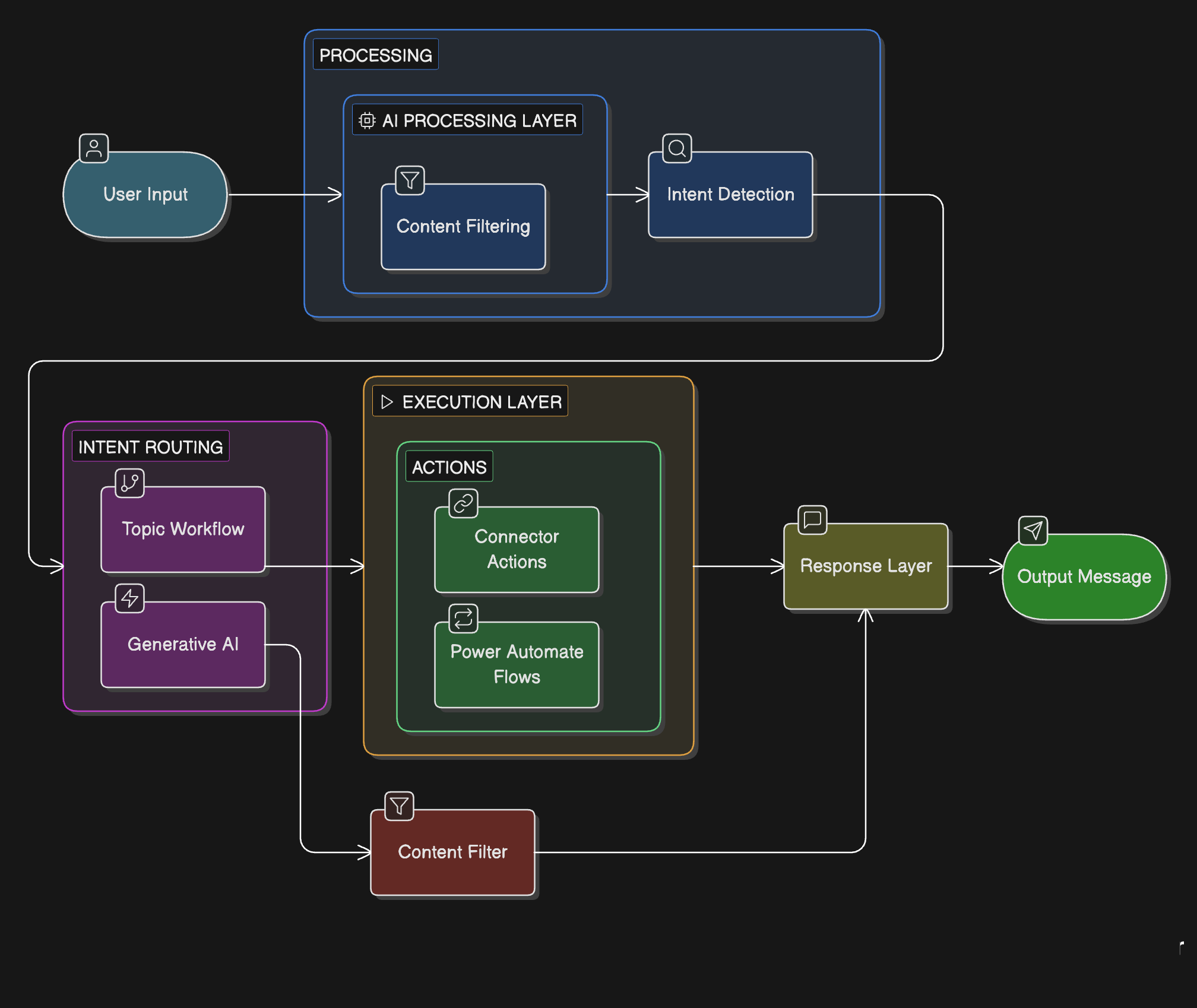 For example:
- ContentFiltered errors → AI + safety layer interaction
- Adaptive Card issues → Execution or channel handling
- Teams issues → Channel-specific behavior
- Connector failures → Execution layer permissions
If you know which layer is failing, debugging becomes much faster.
ContentFiltered / openAIIndirectAttack Error
The content was filtered due to Responsible AI restrictions or any other plugin error.This took a significant time to figure out sometimes all the solutions used together will and other times its not

The content was filtered due to Responsible AI restrictions.
Error Code: ContentFiltered
Why It Happens
Copilot Studio applies LLM-based safety filtering on every conversational turn, including bot-generated messages. This means even internal system prompts can trigger moderation if they resemble executable instructions. It flags content that looks like it could be an injected instruction. Common triggers include:
- Message nodes containing instruction-like text (e.g., “Summarize my latest emails”)
- Email addresses combined with action instructions in the same message
- Card submit data containing structured commands being processed by the AI layer
- Compliance PDFs or other technical documents triggering false positives
- Connectors are not permitted
Solutions
All the solutions may work better , but the last one worked perfectly, you can try in any order.
Solution A: Use Neutral Display Text
Instead of sending action-like text as messages, do not mix instructions and actions, use conversational, neutral phrasing:
| Incorrect (Triggers Filter) | Correct (Safe) |
|---|---|
| Summarize my latest emails | Fetching your latest emails… |
| Show my latest emails | Great, let me check your inbox… |
| Create meeting and send invite to user@company.com | Scheduling your meeting now… |
Solution B: Use Variables Instead of Messages
Pass instructions via variables, not message text. The AI layer only scans messages, not variable assignments:
- Set a variable:
Topic.EmailAction = "latest_emails" - Route downstream actions using the variable value
- Display only neutral, conversational text in Message nodes
Solution C: Use Direct Connector Actions
For calendar/email operations, use direct Power Automate flows or connector actions instead of AI-orchestrated actions. This bypasses the content filter entirely since no AI is involved in the execution.
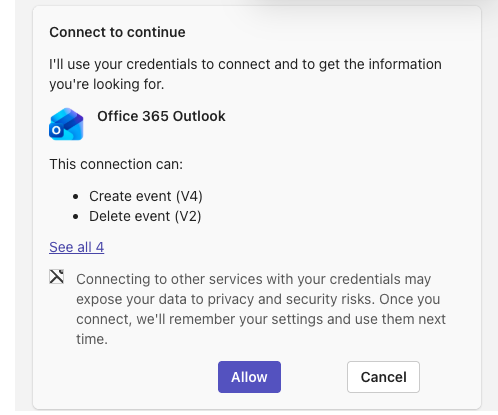
Solution D:Connector is not Approved When using connectors , sometimes the channel doesnt prompt for connector and user doesnt allow it (as it hasnt prompted), especially with subagents. Try to use child agent directly and allow it or repeat the messages for the channel to trigger the connector request
2. Adaptive Card Buttons Not Working in Test Chat
I was working with an adaptive card. Ofcourse havent worked with them in a while. Clicked an Adaptive Card button but nothing happens. While I typed the same text manually works fine.
Why It Happens
When a user types a message, Copilot Studio picks it up as a trigger phrase. But when a user clicks an Adaptive Card button, the data is sent as a structured submit payload, not as text. Copilot Studio needs to be explicitly configured to capture it.
Solution
After the Adaptive Card node, add a Condition node that routes based on the action string output from the card’s data payload ,like using a conditon to route the action to an agent or Topic
| Condition | Route To |
|---|---|
action == "latest_emails" |
Latest Emails topic / EmailAgent |
action == "summarize_email" |
Summarize Email topic / EmailAgent |
3. Adaptive Card Buttons Not Working in Teams
Another issue popped up is card buttons work in the test chat but do nothing when deployed to Microsoft Teams channel.
Why It Happens
In Teams, the Adaptive Card submit payload is handled differently. The action string from the data payload may not get captured as an output variable. Teams requires the messageBack mechanism to send button clicks as user messages.
Solution: Add messageBack to Card Actions
Add the msteams messageBack property to each Action.Submit in your card JSON:
"data": {
  "action": "latest_emails",
  "msteams": {
    "type": "messageBack",
    "displayText": "Latest emails",
    "text": "latest emails"
  }
}
Then create matching topics with trigger phrases that match the messageBack text values.
Important: Keep messageBack text neutral and non-instructional to avoid triggering the ContentFiltered error. Use “latest emails” instead of “Show my latest emails”.
4. Dual Compatibility: Test Chat + Teams
The Problem
| Test Chat / Web | Teams | |
|---|---|---|
| Card submit sends | data payload (output variables) | messageBack text (user message) |
| Routing via | Condition on action variable | Topic trigger phrases |
The Solution: Dual Routing
- Include both
actionin data AND messageBack in each card button - Create individual topics for each action with trigger phrases matching the messageBack text
- In the orchestrator topic, add a Condition node on
actionas a fallback for test chat - In Teams, messageBack triggers topics directly; in test chat, the condition node routes
5. Adaptive Card Parsing Errors
“Unknown property: padding”
The padding property is not supported in Copilot Studio’s Adaptive Card renderer. Remove it from Container elements entirely.
| Incorrect | Correct |
|---|---|
"padding": "Default" |
Remove the padding property entirely |
Conditional Visibility Not Supported
The $when syntax is part of Adaptive Cards Templating, which evaluates conditions against a data context passed at render time, not against live user input. There is no client-side interactivity in Teams/Copilot Studio that re-evaluates visibility when a radio button is clicked.
Workaround: Use a two-card flow. Show Card 1 with the choice, capture the response, then conditionally show Card 2 based on the user’s selection.
6. Power Automate Input Type Mismatch
These are the usual errors that often come up with Power Automate , not the Copilot Studio specific ones
Date Error Message
Input variable 'Date' is of incorrect type: Date
Why It Happens
The Power Automate flow expects a String input but Copilot Studio sends a Date type from the Adaptive Card’s Input.Date field.
Solution
Add a Set Variable node between the Adaptive Card and the Power Automate action to convert the date:
Topic.MeetingDateString = Text(Topic.meetingDate, "yyyy-MM-dd")
Then pass Topic.MeetingDateString (String) to the flow instead of Topic.meetingDate (Date).
7. AI Generating Redundant Text Alongside Adaptive Cards
The bot sends the Adaptive Card correctly but also generates a text-based duplicate of the menu options below it (e.g., bullet-point list of Email and Calendar options).
Why It Happens
If you are using the orchestrator’s AI instructions or Generative Answers feature is generating a response alongside the card. The AI interprets the greeting topic as an opportunity to also produce a helpful text response.
Solution
- Send the Adaptive Card via a Send a message node, not through AI/Generative answers
- Remove any Generative answers or Create generative reply node from the greeting topic
- Remove extra Message nodes before and after the card
- The greeting topic should contain only: Adaptive Card + Condition routing. No text messages.
9. Best Practices Summary
Adaptive Card Design
- Use
"style": "accent"containers for headers with"color": "Light"text - Add emoji icons to button labels for visual scanning
- Use
ColumnSetwith 2 columns for side-by-side button layouts - Use
"style": "destructive"for urgent/warning actions (renders red in Teams) - Do not use
"padding"property — not supported in Copilot Studio
Content Moderation Avoidance
- Message nodes are for displaying text to the user, not for sending instructions to the AI
- Keep messageBack text short and non-instructional (e.g., “latest emails” not “Show my latest emails”)
- Pass action logic through variables, not conversation messages
- Use direct Power Automate flows instead of AI-orchestrated actions for email/calendar operations
Orchestrator Architecture
- Orchestrator shows the menu card and routes — it does NOT execute tasks
- Each button routes to a separate child topic/agent
- Use dual routing: Condition on
actionfor test chat + messageBack trigger phrases for Teams - Add a Menu topic (triggered by “menu”, “help”, “options”) that re-shows the SmartDesk card
- Add the card to the Fallback topic so unrecognized input shows the menu again
Dynamic Adaptive Cards
- Adaptive Cards cannot use “today” dynamically — build the card JSON in your topic using Power FX
- Use
Text(Now(), "yyyy-MM-dd")to inject today’s date into the card template Input.Timehas no min/max for current time — validate after submission instead- Conditional visibility (
$when) does not work with live user input — use multi-card flows
Compiled from real-world implementation experience on March ca2026
Final Thoughts
Copilot Studio is not just a chatbot builder.
It is an orchestration layer combining:
- AI safety systems
- Conversational intelligence
- Workflow automation
- Enterprise integrations
Most production issues arise not from bugs, but from misunderstanding how these layers interact.
Once you understand:
- where AI is involved
- where workflows execute
- where safety filters apply
you can design copilots that are predictable, scalable, and enterprise-ready.
Subscribe via RSS
Comments